

As the summer approaches, this can be a great moment to look ahead. You may find there are areas of your mission and ministry that would benefit from some extra support – perhaps a specific part of church life that needs additional care or you have a new idea or project that requires dedicated funding.
Raising money for these needs alongside regular weekly giving can be challenging. That’s where Give a Little becomes especially helpful, offering a simple way to ensure every aspect of church life has the opportunity to flourish through generosity.
The List feature allows you to present multiple campaigns on a single screen, giving donors the freedom to choose exactly where they’d like their gift to go. For example, you might want to display options such as:
- General church fund
- A building need (e.g., roof repairs)
- A specific project (such as organ restoration)
- Community outreach (food banks, warm spaces, etc.)
- A themed seasonal campaign (Easter, Lent, Christmas)
- A one-off event (Summer Fair)
All of these can appear at the same time using the List feature enabling the donor to select the fund that resonates with them give accordingly. This is particularly helpful for guests or first-time visitors who may wish to make a one-off contribution to a project that inspires them. It is also valuable for regular givers, those who may donate via direct debit or PGS, who may wish to make another generous donation to a different aspect of church life.
To set this up please follow the steps below:

Log into Give a Little and along the top bar select Campaigns. Underneath the top bar should be a secondary bar with the heading Lists. Here you will see any current lists and have the option to create ones, by selecting the blue “Add new list button”

Once selected, you will have the option to create a list of App campaigns (for lists on contactless machines and tablets) or a Web campaign (for those using online giving pages and websites)

From there you will need to create a host screen, the main screen that will link to the different campaigns. You can select an image for the background and then you can add any text that you would like above the campaigns. Please note the accent colour refers to the colour of the buttons.
For example: “Welcome to our church” followed by “Please consider donating to one of the causes below”

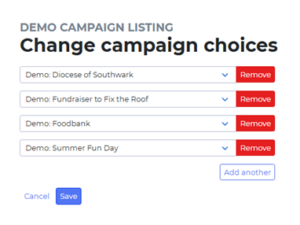
Your next step will then be to assign the campaigns you wish to display on your list under campaign choices. These can be changed at any time.
Once saved:
For App Campaigns: Access your devices GAL menu by swiping from the top left to the top right. Select the campaigns feature and then choose your list from the selection. It will then appear on the device like the picture below:

For web users: Once published, you will be provided with a custom URL which will display your campaign list on a webpage. It will appear on a computer or phone like the image below: